
OU Group Sync
The OU Group Sync feature automatically synchronizes users from Organizational Units to Google Groups, with saved configurations that can be reused and managed.
Overview
Keeping Google Groups synchronized with Organizational Units can be time-consuming and error-prone when done manually. OU Group Sync automates this process by maintaining saved sync configurations that you can run whenever needed.
How It Works
- Create a Sync Configuration: Select one or more OUs and specify the target Google Group
- First Sync: The initial sync only adds users to the group (safe mode - never removes anyone)
- Subsequent Syncs: Later syncs mirror the OU exactly (adds new users AND removes users no longer in the OU)
- Reuse: Save configurations and re-sync anytime with a single click
Understanding Sync Behavior
First Sync (Automatic - Safe Mode)
When you create a new sync configuration and run it for the first time:
What it does:
- Creates the group if it doesn't exist
- Adds all users from the selected OUs to the group
- Never removes any existing group members
- Safe for groups that already have members
Example:
OU Members: student1@, student2@, student3@
Group Before: student1@, teacher@ (manually added)
Group After: student1@, student2@, student3@, teacher@
Result: 2 new students added, teacher@ preserved
Subsequent Syncs (Automatic - Mirror Mode)
When you click "Resync" on an existing configuration:
What it does:
- Compares current group membership with OU membership
- Adds users who joined the OU
- Removes users who left the OU
- Makes the group mirror the OU exactly
Example:
OU Members: student1@, student2@, student4@ (student3@ transferred out, student4@ joined)
Group Before: student1@, student2@, student3@, teacher@
Group After: student1@, student2@, student4@
Result: student4@ added, student3@ and teacher@ removed
⚠️ Important: After the first sync, subsequent syncs will remove members not in the OU. The system automatically determines which sync mode to use based on whether it's the first time syncing that configuration.
Saved Configurations
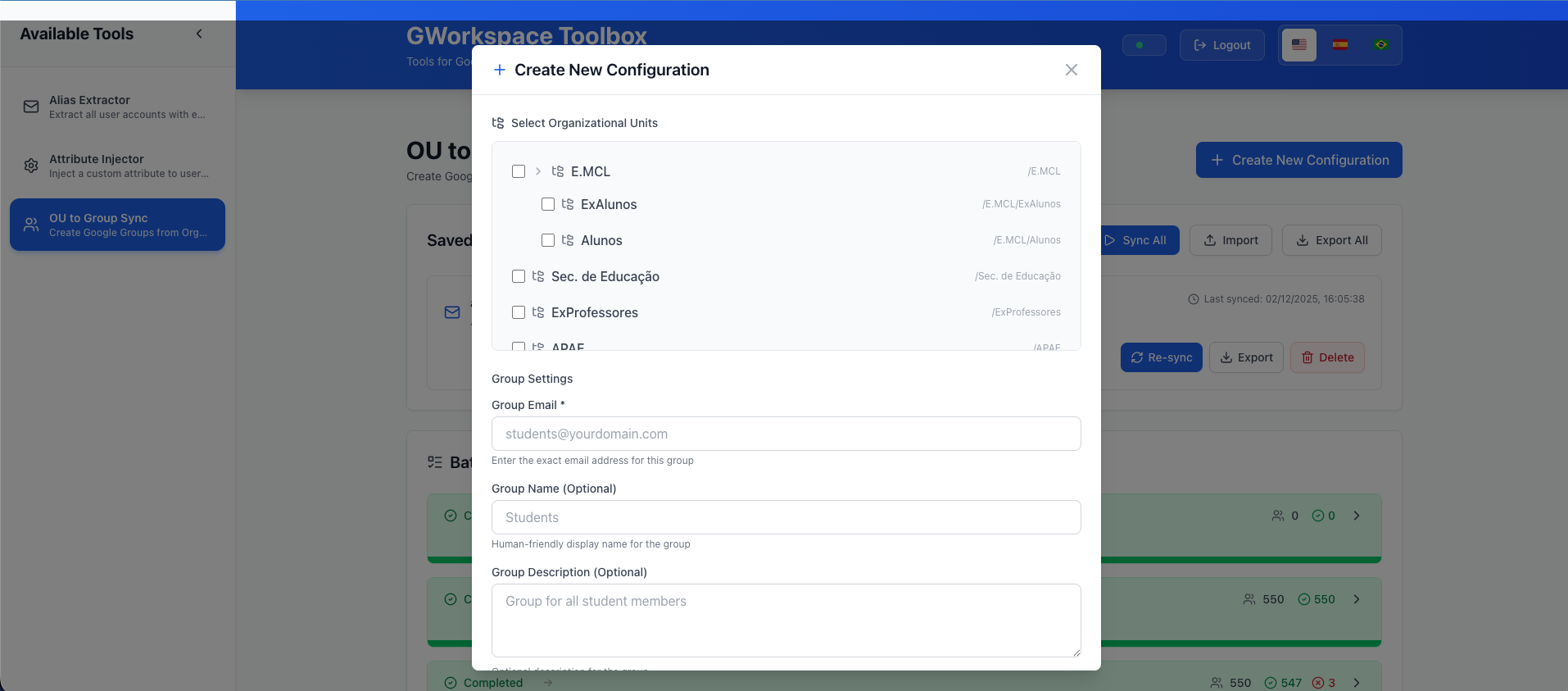
Creating a Configuration
- Click "+ New Configuration"
- Select one or more OUs from the tree
- Enter the target group email (e.g.,
grade10-students@school.edu) - Optionally provide a group name and description
- Click "Sync" to create the configuration and run the first sync
Managing Configurations
Once saved, you can:
- Resync: Click the sync button to update the group with current OU members
- Export: Download a single configuration as JSON
- Delete: Remove a configuration you no longer need
- Sync All: Run all saved configurations at once
The interface shows:
- Group email address
- Number of OUs being synced
- Last sync timestamp
- Quick action buttons for each configuration
Export and Import
Export All Configurations:
- Click "Export All" to download all saved configurations as a JSON file
- Useful for backup or migrating to another instance
Import Configurations:
- Click "Import" and select a previously exported JSON file
- Configurations are added (existing ones are skipped)
- Useful for restoring backups or sharing configurations
Common Use Cases for Schools
Class Mailing Lists
Automatically maintain class email groups:
OUs: /Students/Grade-10
Group: grade10-students@school.edu

Result: All 10th grade students automatically in mailing list
First sync: Adds all current students
Later syncs: Updates when students transfer in/out
Faculty Department Groups
Keep faculty department groups current:
OUs: /Faculty/Science
Group: science-faculty@school.edu

Result: Group always reflects current science department roster
First sync: Adds all science faculty
Later syncs: Removes transferred faculty, adds new hires
Grade Level Access
Grant grade-appropriate resource access:
OUs: /Students/Grade-12
Group: seniors@school.edu

Result: Seniors get access to:
- Senior-only Classroom courses
- College prep resources
- Graduation planning materials
Multi-OU Groups
Combine multiple OUs into one group:
OUs: /Students/Grade-11, /Students/Grade-12
Group: upperclassmen@school.edu

Result: All juniors and seniors in one group for:
- Advanced course access
- Campus leadership programs
- College prep workshops
Campus Building Groups
Sync users by physical campus or building:
OUs: /Faculty/Elementary, /Staff/Elementary
Group: elementary-campus@school.edu

Result: All elementary campus personnel in group for:
- Building announcements
- Emergency notifications
- Campus resource access
Best Practices
Before First Sync
If the group already has members you want to keep:
- Check who's currently in the group
- Ensure those users are also in the OUs being synced
- Or be aware they'll be removed on subsequent syncs
Group Naming Conventions
Use clear naming to indicate synced groups:
grade10-students-auto@school.edu(automatically synced)grade10-students-manual@school.edu(manually managed)- This helps prevent confusion about which groups are managed by sync
Documentation
Document your sync configurations:
- Which OUs sync to which groups
- Purpose of each synced group
- Expected membership counts
- Who can trigger resyncs
Regular Resyncing
Schedule regular resyncs (you must trigger manually):
- Weekly: For dynamic groups (student grades, new hires)
- Monthly: For stable groups (departments, buildings)
- After major changes: Grade level promotions, reorganizations
Permissions Required
OU Group Sync requires these Google Workspace API scopes:
https://www.googleapis.com/auth/admin.directory.user.readonly(read users from OUs)https://www.googleapis.com/auth/admin.directory.group(manage groups and membership)
Group Requirements
Group Creation
The tool will create the group if it doesn't exist, using:
- The email address you specify
- The group name you provide (or derived from email)
- The description you provide (optional)
Group Email Format
Must be a valid Google Group email:
grade10-students@school.edu✓science.faculty@school.edu✓robotics-club@school.edu✓invalid-email✗
Group Types
Works with:
- Regular Google Groups
- Security groups
- Mailing lists
- Discussion groups
Limitations
OU Scope
The sync operates on the specified OU only. It does NOT automatically include:
- Sub-OUs (nested organizational units)
- Parent OUs
Example:
/Students              ← Selected: syncs only direct members
├── /Grade-9          ← NOT included
├── /Grade-10         ← NOT included
└── /Grade-11 ← NOT includedWorkaround: Select multiple OUs when creating the configuration.
Group Ownership
The authenticated user must have permission to modify the target group:
- Group owner
- Domain administrator
- Delegated admin with group management rights
Subsequent Sync Behavior
After the first sync, ALL subsequent syncs will remove members not in the OUs. This is automatic and cannot be disabled. If you need to preserve manually-added members, add them to one of the synced OUs.
Nested Groups
The sync adds users directly to groups, not as nested groups.
Performance
Typical sync times:
- Small OUs (< 50 users): 5-15 seconds
- Medium OUs (50-500 users): 15-60 seconds
- Large OUs (500+ users): 1-5 minutes
Factors affecting speed:
- Number of users in OUs
- Current group size
- API response times
- Network latency
Troubleshooting
"Group not found" Error
The specified group doesn't exist or you lack access.
Solution:
- Verify group email address is correct
- Let the tool create it (if it's a new group)
- Ensure you have permission to manage the group
"OU not found" Error
The organizational unit path is incorrect.
Solution:
- Verify OU path starts with
/ - Check exact OU path in Admin Console
- Path is case-sensitive
- Ensure no trailing spaces
No Members Added
Common causes:
- OU is empty (no users)
- All users are already in the group
Solution:
- Check OU has users in Admin Console
- Review sync results in the job queue
- Check application logs for errors
Members Unexpectedly Removed
This happens on subsequent syncs (after the first one) because the system mirrors the OU exactly.
Solution:
- Add those users to one of the synced OUs
- Or accept that they'll be removed and re-add manually when needed
- Or don't run subsequent syncs if you want to preserve the group as-is
Sync Configuration Already Exists
You're trying to create a configuration for a group that's already configured.
Solution:
- Use the "Resync" button on the existing configuration
- Or delete the old configuration first
Security Considerations
Audit Logging
All group membership changes are logged:
- View in Admin Console > Reporting > Audit
- Filter by "Group Settings" events
- Track additions/removals
- Review who triggered syncs
Automated Changes
Since subsequent syncs automatically remove members:
- Document all sync configurations
- Monitor group membership regularly
- Review sync results after each run
- Have a process for handling removal concerns
Access Control
- Limit who can access the GWorkspace Toolbox
- Monitor who creates and runs sync configurations
- Regular access reviews
- Use audit logs to track changes
Advanced Usage
Multiple OUs to One Group
Select multiple OUs when creating a configuration:
OUs: /Faculty/Elementary, /Faculty/Middle, /Faculty/High
Group: all-faculty@school.edu

Result: All faculty members in one group
Combining with Google Groups Nesting
Use Admin Console to nest synced groups:
Create separate synced groups:
- freshmen@school.edu (synced from /Students/Grade-9)
- sophomores@school.edu (synced from /Students/Grade-10)

Then nest them in Admin Console:
- all-students@school.edu
  ├── freshmen@ (nested)
  └── sophomores@ (nested)
Backup and Restore
Regularly export your configurations:
- Click "Export All" to download JSON
- Store the file securely
- Import when needed to restore configurations
Next Steps
- Review Alias Extractor
- Learn about Attribute Injector
- Check the FAQ for common questions